Friday, July 3, 2015


Thursday, July 2, 2015
3 Must Have Websites For Android Developers
1. Material Design Colors: Download xml of material colors from here.

2. Icon Generator : Generate app icons, app bar icons, ,nine patch, notification icon from Android Asset Studio

3. App Icon Maker: Make glossy icons for your app here


Sunday, March 8, 2015
10 Must Have Apps For Your Android Smartphone
Here are 10 Android Apps that every Android owner should consider. These apps will make you more productive and smarter.
1. Pushbullet : Pushbullet, acts as a bridge between your mobile and desktop OSes. If you own an Android device, PushBullet is an easy way to push content to your Android device from desktop. With pushbullet you can send, files, note, links, reminders and addresses from your desktop to your phone/your friends phone (or vice versa) with just a click or two. Pushbullet automatically sends all your phone notifications over to your computer in the form of little windows. With Pushbullet, you can now copy something on one device and then paste it through another, instantly. This feature is called Universal Copy And Paste .
Download Pushbullet.
2. MXPlayer : Best media player for Android, capable of playing most types of video formats. Play your files with subtitles. It has other features like Pinch to zoom, zoom and pan i.e Easily zoom in and out by pinching and swiping across the screen. Subtitles gesture i.e scroll forward/backward to move to next/previous text.
Download MXPlayer
1. Pushbullet : Pushbullet, acts as a bridge between your mobile and desktop OSes. If you own an Android device, PushBullet is an easy way to push content to your Android device from desktop. With pushbullet you can send, files, note, links, reminders and addresses from your desktop to your phone/your friends phone (or vice versa) with just a click or two. Pushbullet automatically sends all your phone notifications over to your computer in the form of little windows. With Pushbullet, you can now copy something on one device and then paste it through another, instantly. This feature is called Universal Copy And Paste .
Download Pushbullet.
2. MXPlayer : Best media player for Android, capable of playing most types of video formats. Play your files with subtitles. It has other features like Pinch to zoom, zoom and pan i.e Easily zoom in and out by pinching and swiping across the screen. Subtitles gesture i.e scroll forward/backward to move to next/previous text.
Download MXPlayer
Friday, February 13, 2015
How to use WhatsApp as Notepad.
1. Create a WhatsApp Group.
2. Add any friend.
3. Remove that friend.
Your notepad is ready :D
2. Add any friend.
3. Remove that friend.
Your notepad is ready :D
Saturday, September 28, 2013
Android Flashlight
You must add the permission in AndroidManifest.xml:
1
2
| <uses-permission android:name="android.permission.CAMERA" /><uses-feature android:name="android.hardware.camera" /> |
Main.xml
<?xml version="1.0" encoding="utf-8"?>
<LinearLayout xmlns:android="http://schemas.android.com/apk/res/android"
android:orientation="vertical"
android:layout_width="fill_parent"
android:layout_height="fill_parent"
>
<Button
android:id="@+id/on_btn"
android:layout_width="fill_parent"
android:layout_height="wrap_content"
android:text="Turn Flash ON" />
</LinearLayout>
Thursday, June 20, 2013
Set textview and 2 buttons in a android layout
You use this relativeLayout, that the first Button (Your left button) has to be set after set the second button(Your right button). This only works, if the button, that should be right, still exists before setting the left button.
<?xml version="1.0" encoding="utf-8"?>
<RelativeLayout xmlns:android="http://schemas.android.com/apk/res/android"
android:layout_width="fill_parent"
android:layout_height="fill_parent"
android:orientation="vertical"
android:padding="10dip" >
<RelativeLayout
android:id="@+id/upperView"
android:layout_width="fill_parent"
android:layout_height="wrap_content"
android:background="@android:color/darker_gray"
android:orientation="vertical"
android:padding="10dip" >
<TextView
android:id="@+id/textView"
android:layout_width="wrap_content"
android:layout_height="wrap_content"
android:layout_alignParentLeft="true"
android:layout_centerVertical="true"
android:text="Hello.."
android:textColor="@android:color/white" />
<Button
android:id="@+id/button1"
android:layout_width="wrap_content"
android:layout_height="wrap_content"
android:layout_alignParentRight="true"
android:text="Button 1" />
<Button
android:id="@+id/button2"
android:layout_width="wrap_content"
android:layout_height="wrap_content"
android:layout_toLeftOf="@+id/button1"
android:text="Button 2" />
</RelativeLayout>
<ListView
android:id="@+id/listView"
android:layout_width="wrap_content"
android:layout_height="wrap_content"
android:layout_below="@+id/upperView" />
</RelativeLayout>
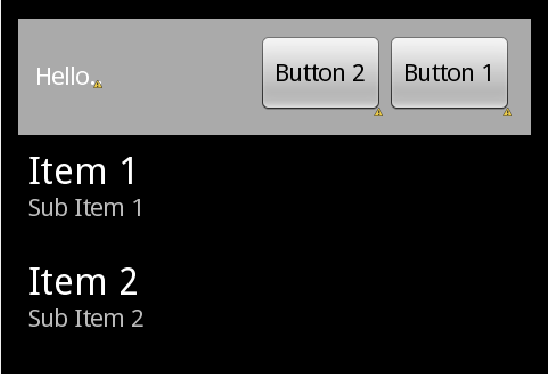
<?xml version="1.0" encoding="utf-8"?>
<RelativeLayout xmlns:android="http://schemas.android.com/apk/res/android"
android:layout_width="fill_parent"
android:layout_height="fill_parent"
android:orientation="vertical"
android:padding="10dip" >
<RelativeLayout
android:id="@+id/upperView"
android:layout_width="fill_parent"
android:layout_height="wrap_content"
android:background="@android:color/darker_gray"
android:orientation="vertical"
android:padding="10dip" >
<TextView
android:id="@+id/textView"
android:layout_width="wrap_content"
android:layout_height="wrap_content"
android:layout_alignParentLeft="true"
android:layout_centerVertical="true"
android:text="Hello.."
android:textColor="@android:color/white" />
<Button
android:id="@+id/button1"
android:layout_width="wrap_content"
android:layout_height="wrap_content"
android:layout_alignParentRight="true"
android:text="Button 1" />
<Button
android:id="@+id/button2"
android:layout_width="wrap_content"
android:layout_height="wrap_content"
android:layout_toLeftOf="@+id/button1"
android:text="Button 2" />
</RelativeLayout>
<ListView
android:id="@+id/listView"
android:layout_width="wrap_content"
android:layout_height="wrap_content"
android:layout_below="@+id/upperView" />
</RelativeLayout>
Wednesday, June 19, 2013
WebView Methods and properties Android
In on create
WebView wv = (WebView)findViewById(R.id.webView1);
wv.getSettings().setJavaScriptEnabled(true);
if(isInternetAvailable()){
wv.setWebViewClient(new myWebClient(){
@Override
public void onPageFinished(WebView view, String url)
{
/* Call whatever, It's finished loading. */
// wv.setVisibility(View.VISIBLE);
// iv.setVisibility(View.GONE);
if (checkk==1)
{
}
else{
wv.setVisibility(View.VISIBLE);
iv.setVisibility(View.GONE);
}
}
});
wv.loadUrl("http://www.google.com");
}else {
Toast.makeText(getApplicationContext(), "Use internet for better performance", Toast.LENGTH_LONG).show();
}
public class myWebClient extends WebViewClient
{
@Override
public void onPageStarted(WebView view, String url, Bitmap favicon) {
// TODO Auto-generated method stub
super.onPageStarted(view, url, favicon);
}
@Override
public boolean shouldOverrideUrlLoading(WebView view, String url) {
// TODO Auto-generated method stub
view.loadUrl(url);
return true;
// or if you want to open default link in webiview and external in other browser
// if (Uri.parse(url).getHost().equals("http://www.google.com")) {
// This is my web site, so do not override; let my WebView load the page
// return false;
}
// Otherwise, the link is not for a page on my site, so launch another Activity that handles URLs
// Intent intent = new Intent(Intent.ACTION_VIEW, Uri.parse(url));
// startActivity(intent);
// return true;
}
public void onReceivedError(WebView view, int errorCode, String description, String failingUrl) {
// Toast.makeText(frontPagee.this, "Your Internet Connection May not be active Or " + description , Toast.LENGTH_LONG).show();
Toast.makeText(frontPagee.this, "Your Internet Connection May not be active ", Toast.LENGTH_LONG).show();
// checkk=1;
}
}
Subscribe to:
Posts (Atom)